Responsive Navbar - Bootstrap 5

How To Activate PlanDeer

Home » How To Activate PlanDeer

Activation Procedure for PlanDeer:

Activation of PlanDeer contains two steps – Requesting for Activation Code from the Publisher and inputting that code into PlanDeer

A. Request for Activation Code

  1. Open PlanDeer 10 planner document. Ensure that Macros are Enabled (Very Important).
  2. Go to “About_PlanDeer” page and under “Product and Activation Information” section, update email id (please use the same email id that you have used while making the purchase) and transaction reference number (You will see as, for example, Transaction Reference - 114470065966 in the email sent to you by the Publisher after the purchase transaction).
  3. Click on “PlanDeer” menu on the ribbon.
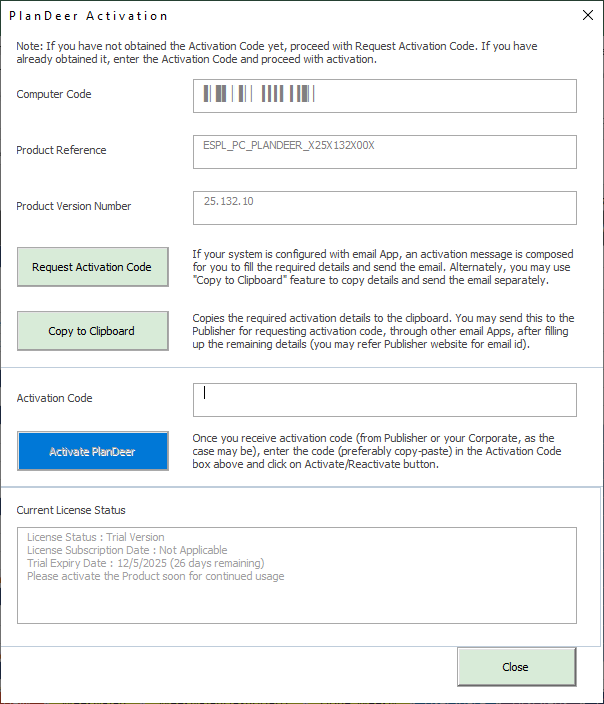
  4. Click on “Activate” menu under Activation tab. This would open the activation form displaying the details required for activation.
  5. If you haven’t requested for Activation code yet, click on “Request Activation Code”. (If you have already requested for activation code and have received it, go to Step B )
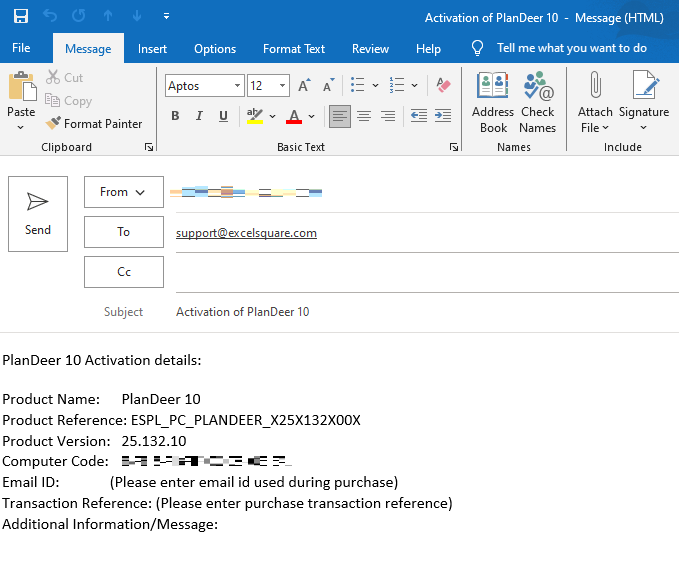
  6. If your system has Microsoft Outlook or any other default App configured as email client, the corresponding email client opens up with a newly composed message with the details required for generating activation code and placeholders for other purchase related information to be provided by you
  7. In case the system is not configured for default email client, you may copy the contents required for requesting activation code, by using “Copy to Clipboard” button on the activation screen and paste the details into a new message composed in the email application of your choice
  8. The message would have placeholders for Email ID  and  Transaction Reference  (which is the reference number provided in the purchase receipt sent by PayPal or other Payment processor and also available in the acknowledgement email that you would have received). Fill up the email ID that you have used during the purchase  (providing other email ID’s may delay the process of receiving activation code) and the transaction reference number
  9. Once the email has been updated with all the required details, you may send the email to support@excelsquare.com. You shall receive the activation code usually within 2 business days.

B. Enter Activation Code

  1. Once you have received the activation code, open the PlanDeer planner document and click on the PlanDeer menu and then click on Activate menu under Activation tab
  2. The activation screen opens up. Copy the activation code you have received in the email and paste it into the “Activation Code” field, and click on “Activate PlanDeer”. (It is advisable not to enter the activation code manually since it might be error prone)
  3. This will activate your installation of PlanDeer. If you have any clarifications in the activation process or you come across any issue during activation, please contact the publisher through their contact channel as provided in contact us.

Activation Procedure for Corporate Users:

For Corporate users, the step of requesting for activation code from Publisher would typically not be there and instead you would need to get the activation code from your organization contact who would have the activation code. Once you obtain the activation code, you may go to Step B detailed above and complete the activation process. It is also possible that your organization may have centralized control of Activation and Deactivation of the Product.


Copyright © ExcelSquare, All Rights Reserved.

Scroll to Top Button